Overview
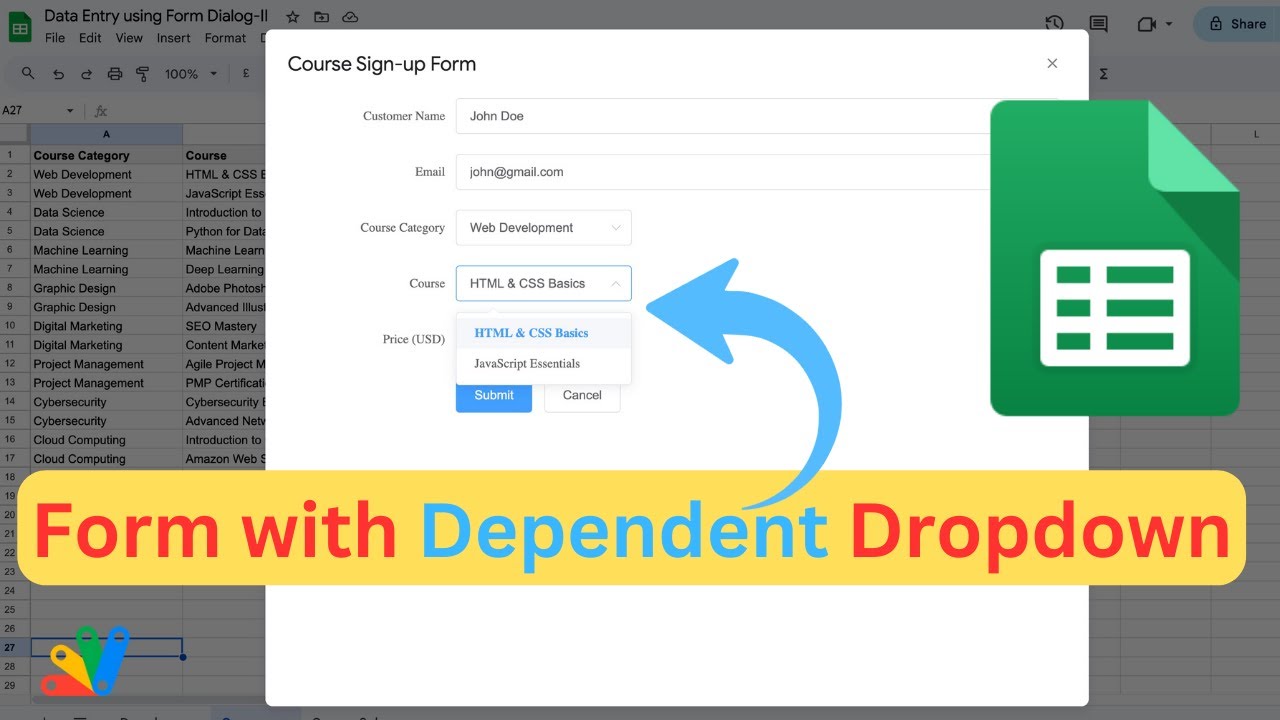
In this video, I will show you how to create dependent dropdown fields in your form using Google Sheets. This tutorial will guide you through the process of populating your Course Sign-up form with data from a Google Sheet. You'll learn how to select a Category and a Course, and see the form auto-populate the price based on your selections. Watch as we fill out the form, hit submit, and see the entry recorded in the 'Course Sales' tab.
What you'll learn:
Setting up your Google Sheets with the necessary tabs: ‘Course Sales’, ‘Dropdown’, and ‘Courses’.
Customizing the form to suit your requirements.
Key Features
- Instant Copy: Copy the entire spreadsheet and script directly into your Google Drive in one click.
- Zero Cost: Completely free to use with any personal or workspace Google account.
- Customizable: Full access to modify sheet columns, layout, and Apps Script logic.
- Video Tutorial Included: Watch the step-by-step setup video right on this page.
How to Use
- Click Download Free Access above and enter your email address.
- Open the copy link delivered to your screen and inbox.
- Click Make a Copy in Google Drive.
- Follow the setup tutorial video above to configure any triggers or permissions.